
Step 1
Start with the labels you already use
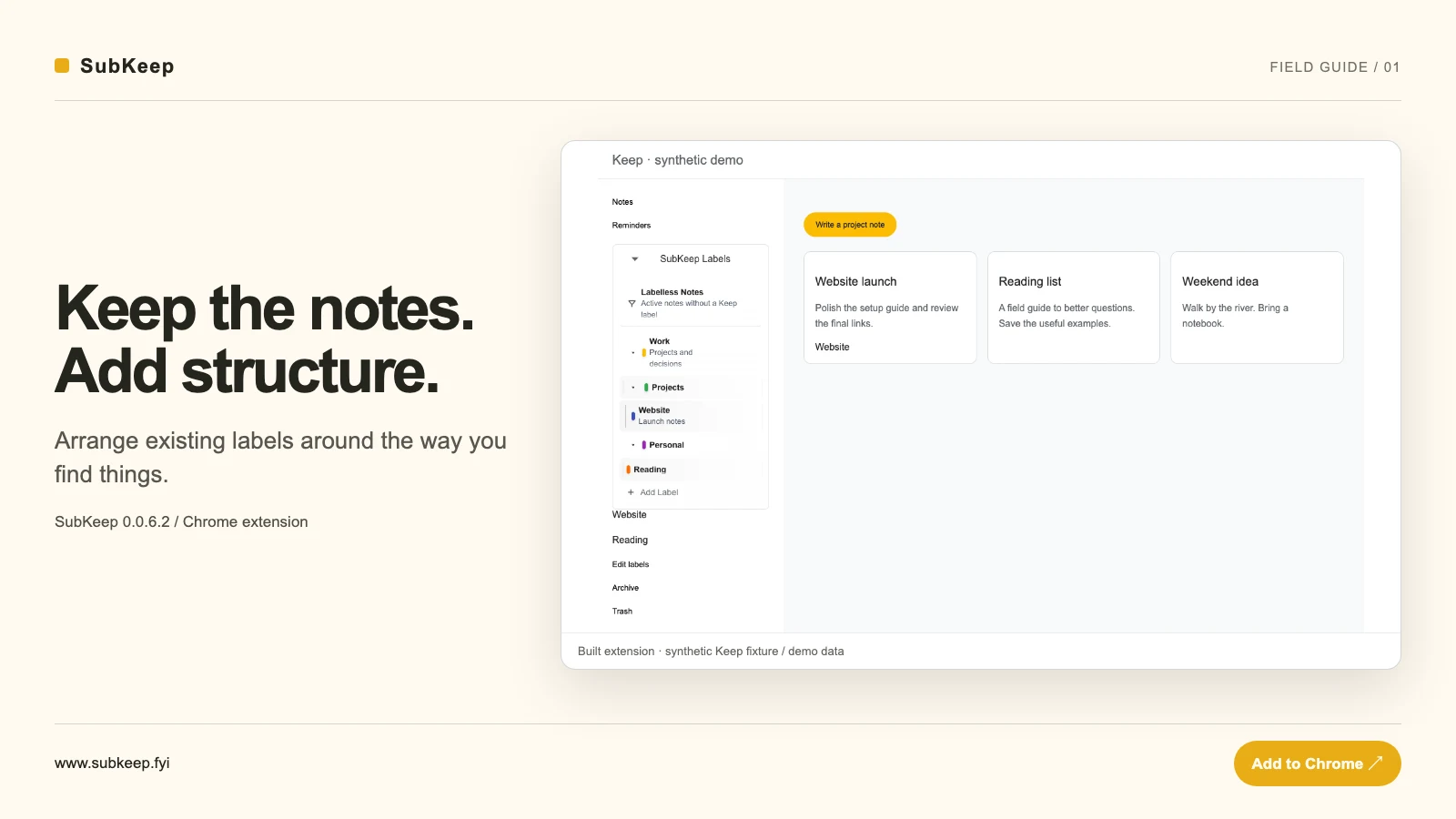
A long sidebar can make a familiar notes app feel harder to navigate. SubKeep adds a local, folder-style hierarchy to Google Keep’s existing label navigation. Your notes stay in Keep. The hierarchy changes how you organize the sidebar; it does not turn Keep’s underlying flat labels into folders.
- Install SubKeep 0.0.6.2 from the Chrome Web Store.
- Open or reload keep.google.com.
- Find the SubKeep Labels section in the sidebar.
Step 2
Build one branch before reorganizing everything
Choose one area you visit often, such as Work. Add a Projects branch and a Website label beneath it. SubKeep supports three levels below the root. Use exact native Keep label names for the labels you want to open: a new SubKeep label does not create its counterpart in Google Keep.
- Start with a small set of existing native labels.
- Arrange them into one expandable branch.
- Select a leaf label and verify that the matching Keep label view opens.
Step 3
Keep navigation expectations precise
Selecting a parent does not combine all of its children into a single filter. SubKeep opens the matching native label view. Names, capitalization, punctuation, spaces, and emoji must match. If the destination does not exist in Keep, create or choose the appropriate native label there before relying on navigation.
- Use branches to reduce sidebar clutter.
- Use matching leaf labels to navigate to a specific native view.
- Import visible Keep labels again when you want to bring new names into SubKeep.
Step 4
Use Labelless Notes as a review pass
In the current Founding Preview, Labelless Notes offers a read-only preview of active notes without native Keep labels. Its scope is the set Keep currently retains after loading, not an account-wide query. Opening a preview returns you to the original note for editing. This is a place to notice unfinished organization, not an automatic labeling system.
- Open Labelless Notes and let the scan finish.
- Review the visible unlabelled notes.
- Open an original note in Keep when you want to change it.
Step 5
Focus the original editor with Zen Mode
Zen Mode is also available in the current Founding Preview. Open an editable note, then choose Zen mode. SubKeep centers the native editor and hides surrounding interface temporarily. It does not copy, serialize, or save your note content itself. Press Escape once to leave Zen Mode while keeping the note open.
- Open the note you want to write.
- Enter Zen Mode and continue using the original editor.
- Press Escape to restore Keep’s surrounding interface.
Step 6
Protect the organization you built
Export from the popup’s Advanced section to download a local JSON backup of the SubKeep hierarchy and metadata. This is not a backup of your Keep notes or their assignments. Restore through the validation preview, choosing merge when you want to add structure or replace when you intend to overwrite it. Organization is stored in Chrome local extension storage and separated by the detected Keep account.
- Export before making a large reorganization.
- Keep the JSON file somewhere you control.
- Review merge or replace carefully; replace undo lasts only for the current popup session.
Watch the workflow
Actual product interface with synthetic demonstration data. The capture environment and limitations are labeled in the video. Captions are also burned into each scene.
What to keep in mind
- SubKeep is independent from Google and does not change Google Keep’s flat label storage or automatically assign labels to notes.
- Nested organization is core functionality. Labelless Notes, Zen Mode, re-import, and backup/restore are designated Pro tools currently available in Founding Preview; future entitlement requirements may differ.
- Labelless Notes covers loaded active notes, not the entire account.
- Backups contain organizational metadata, not note content. Local extension storage does not automatically synchronize your hierarchy between devices.
Start with one useful branch
Try the workflow with a small, familiar example before expanding it.
Add to Chrome